Encryptor
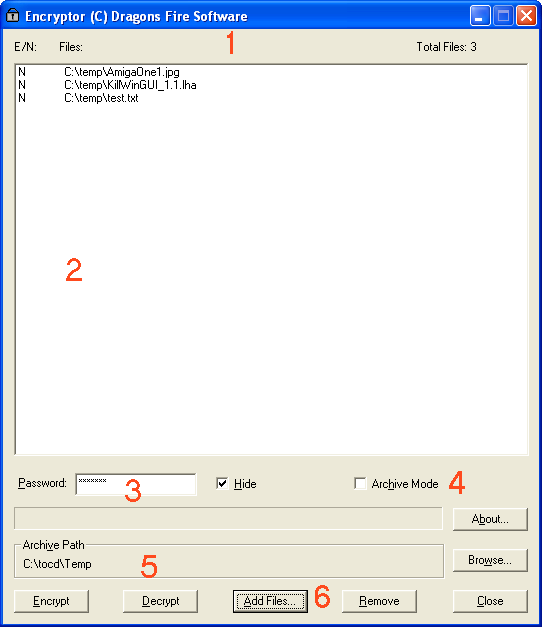
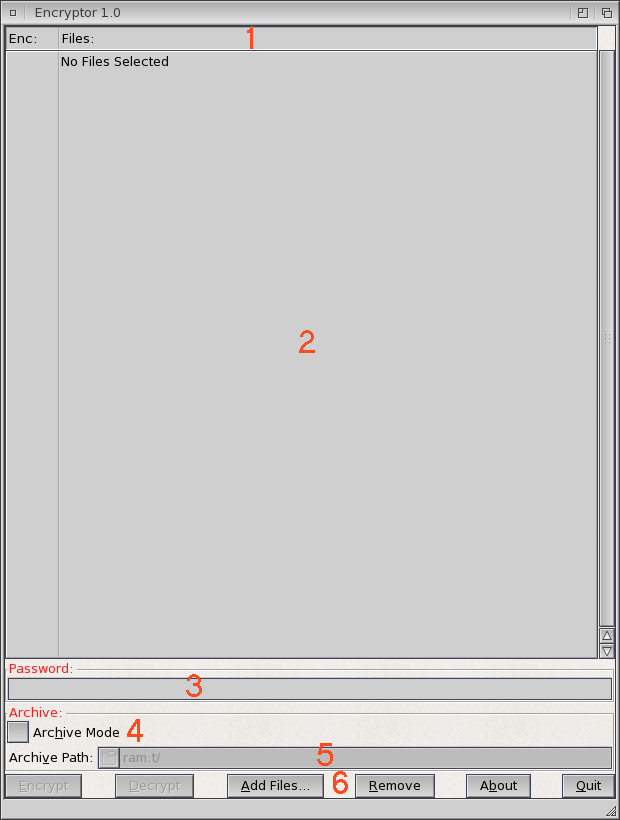
This page describes the main application, shown below,
PC -
AMIGA -
Description of items:
1 - Header bar, displays file count. The E/N or Enc: column indicates whether or not the displayed file is Encrypted or Not.
2 - Main file display - Any files currently selected to be encrypted or decrypted are listed here as well as an indication of their encrypted status.
3 - Password - The password used to encrypt or decrypt the current list of files. If the "Hide" checkbox is on then the password will not be shown (PC Only)
4 - Archive Mode switch - Specifies if the files are encrypted or decrypted in archive mode - see below.
5 - Archive Path - Destination folder used when operating in archive mode.
6 - Control buttons -
"Encrypt" - starts the encryption process.
"Decrypt" - starts the decryption process.
"Add Files" - browse for multiple files to add to the list.
"Remove" - removes the currently selected files from the list.
"Close" - Exit application.
"Browse" - Change the archive path (PC Only).
"About" - Version info etc.
Operation
Non-Archive Mode
Select a number of files using "Add Files". Files will be displayed in the list. Type in a password (can be any length but obviously the longer the better). Press "Encrypt" to start the process. Original files will be overwritten with the encrypted ones. The display will update to show the files as "Encrypted" if all successful. If for some reason, any of the files could not be convereted, Encryptor will inform you so.
Decryption for non-archive mode is the same, except you press "Decrypt"!
During the operation, a progress bar is displayed and the Abort button becomes available.
NOTE: If you select files that are encrypted already and try to encrypt them again, encryption will fail. Similarly if you try to decrypt already decrypted files.
Archive Mode
Archive mode is intended to be used such that the files are stored permanently encrypted (although, they can be decrypted again). The resulting encrypted files are written to the archive folder and the extension of the file is then changed to .cpt (the original files are unaltered).
When Encryptor is installed, the extension .cpt is registered with the lockclient application. This means that if you double click on a .cpt file from within explorer, lockclient is run and this attempts to access the Lock server to find the password and decrypt the file, then open it with the normal registered application.
So, operation is...
Select a number of files using "Add Files". Files will be displayed in the list. Type in a password (as before), select archive mode checkbox. Browse for destination folder if not set. Click "Encrypt" and the and the process will begin.
When finished, each file in the list will have an equivalent file in the destination folder with a .cpt extension. So for example, in the screen shown above, c:\temp\test.txt will be converted to an encrypted version "c:\tocd\temp\test.cpt". As long as the lock server is running, you will be able to just double click on the test.cpt file and notepad will open to display the text file (unless you have another application associated with .txt).
Please see support applications for more information.
Decryption of archive files is the reverse of encryption, select a number of .cpt files, ensure that the application is in archive mode, select a destination folder and the cpt files will be decoded into the destination folder with their original extension.
NOTE: The encryption/decryption used DOES NOT store the password (in encrypted form) in the file anywhere, so if you type in an incorrect password when decrypting, the file will just be corrupt. However, the operations are completely reversible, so you can just re-encrypt with the wrong password and decrypt again with the correct one.